Using Yibu
Everything on the start screen and in the Yibu desktop, one control at a time. All screenshots are from a Redmi K40 running ARLinux 0.2.2.
The phone's interface language is English, so the screenshots are in English.
1 · START SCREEN
Before the desktop starts
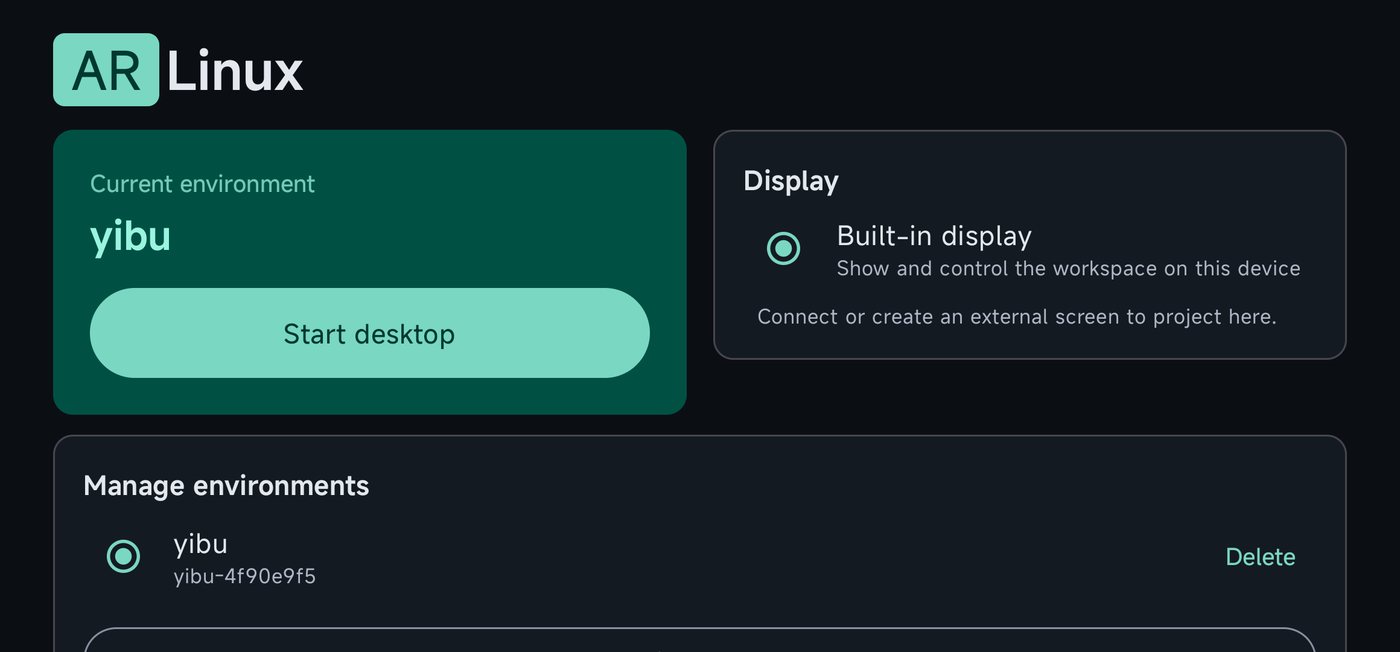 1234
1234- Current environment: the workspace that will start. Yibu is created from the APK, offline.
- Start desktop: opens the workspace. The first start unpacks it on the phone; later starts are quick.
- Display: where the desktop is shown. Built-in display is the phone; a connected monitor or AR glasses appear here too (Android 12+).
- Manage environments: scroll down for your workspaces and Run settings.
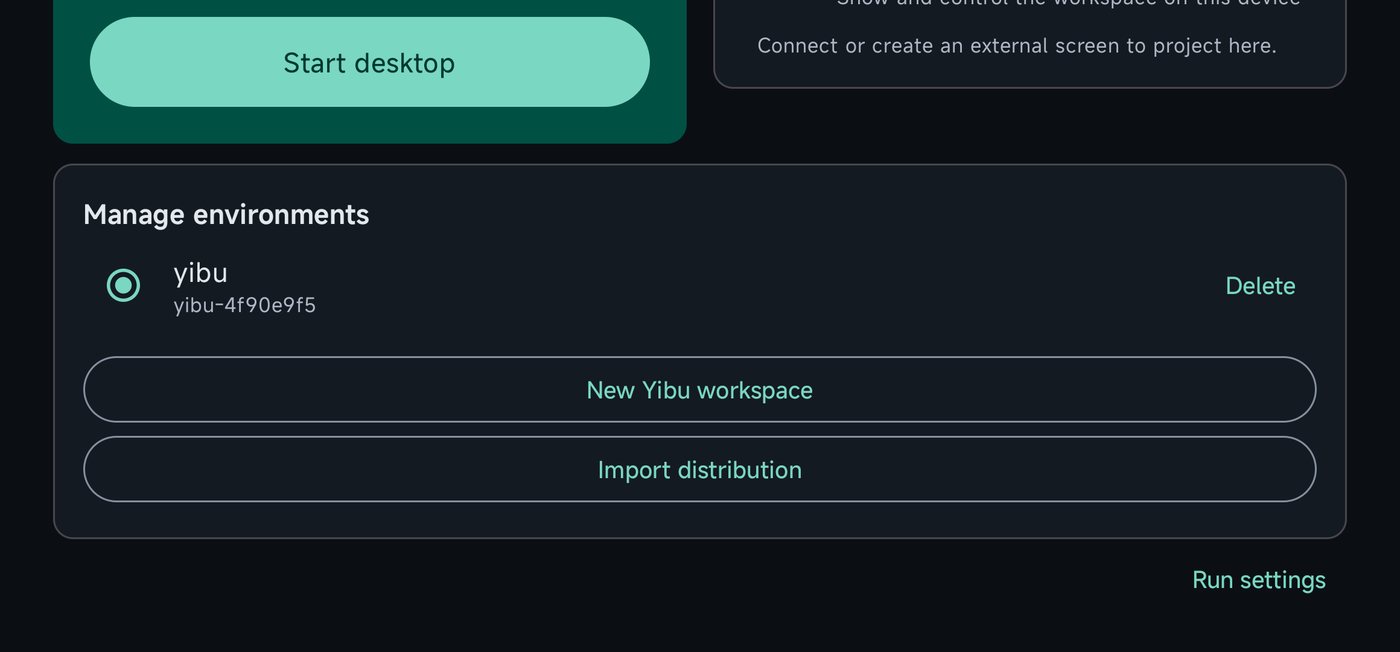 56789
56789- Your workspaces: select one, then Start desktop. Each keeps its own apps and files.
- Delete removes that workspace and everything in it. Back up files first.
- Reinstall or Add Classic: Reinstall refreshes a workspace’s Linux system from this APK and keeps your home folder; Classic adds a traditional free-window desktop. (Older versions show New Yibu workspace here.)
- Import distribution adds LXQt, KDE Plasma, Arch or Omarchy from a downloaded ZIP (don’t unzip it).
- Run settings opens the options below.
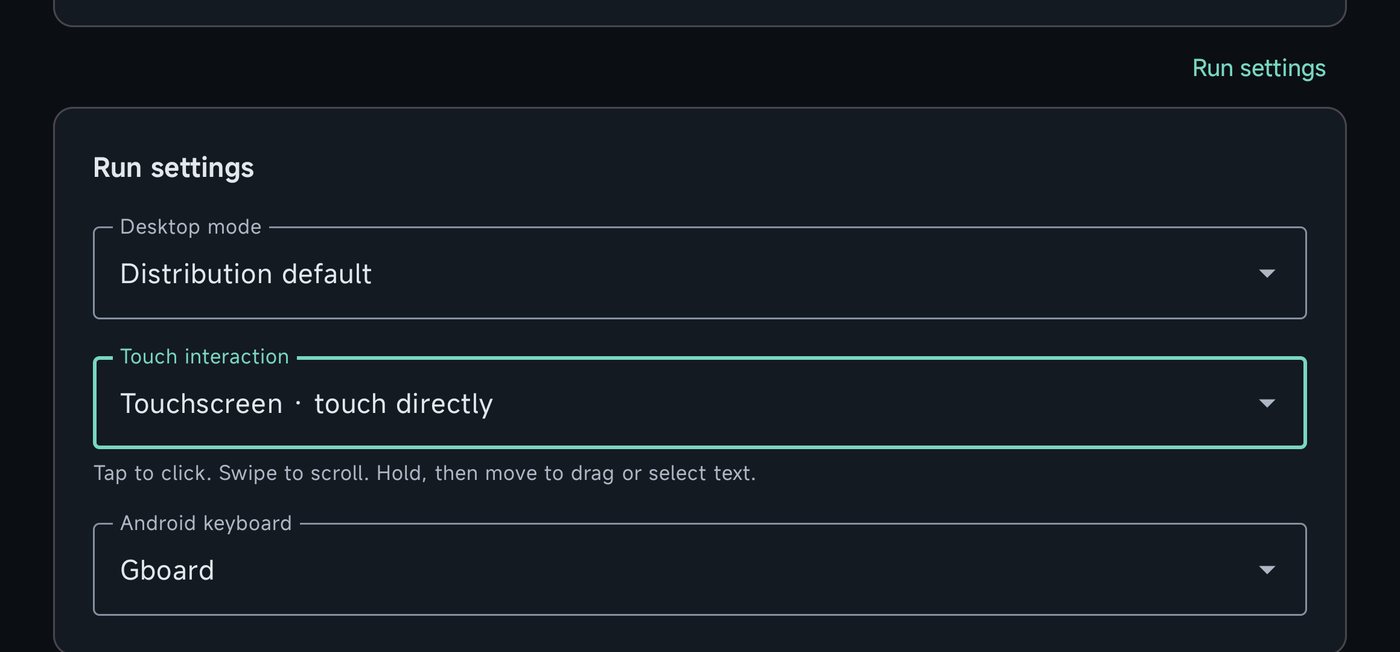 ABC
ABC- A · Desktop mode: which window manager runs the workspace. Keep Distribution default; Yibu’s layout needs it.
- B · Touch interaction: Touchscreen lets you tap things directly; Touchpad turns the screen into a touchpad with two pointers. Phones start in Touchpad, tablets in Touchscreen. Takes effect the next time you start the desktop.
- C · Android keyboard: Gboard or WeChat Input. They give you the floating keyboard and hold-to-talk voice; otherwise your system keyboard is used.
2 · THE YIBU DESKTOP
One main app, three live side slots
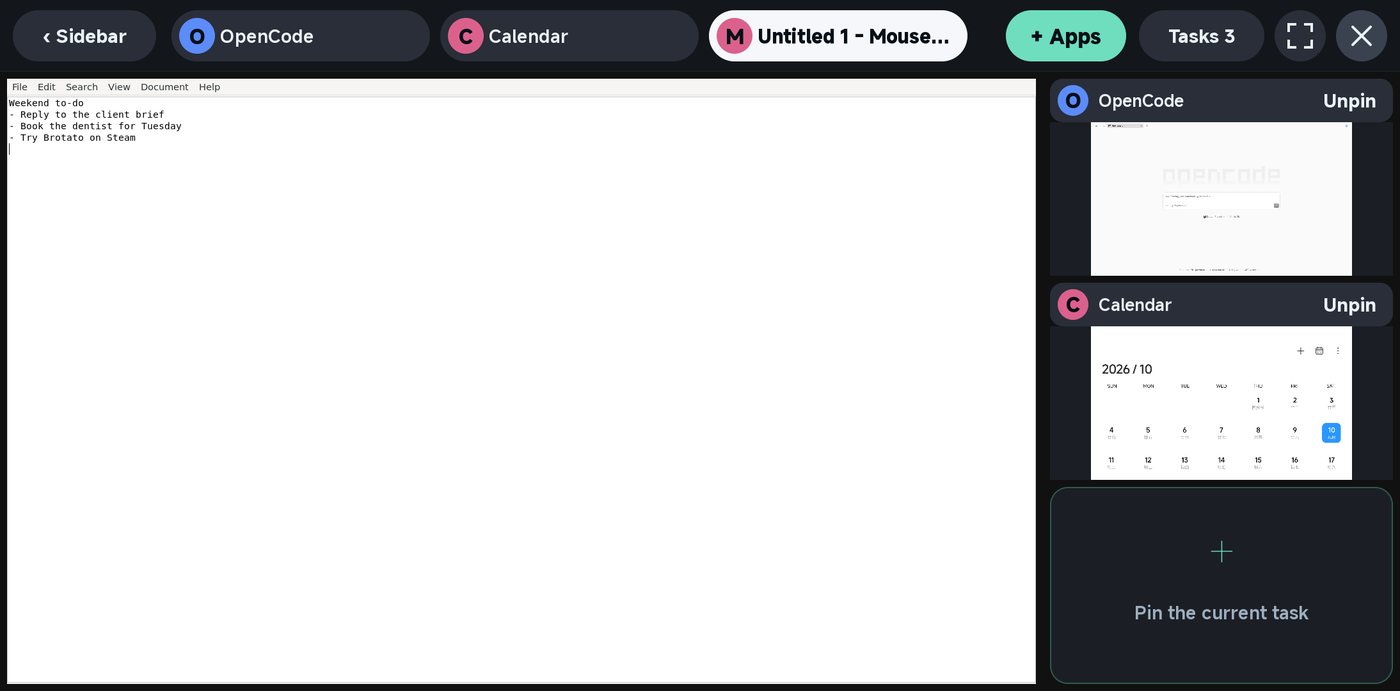 78910
78910- Sidebar: moves the side slots to the left or right.
- Task chips: every running app. The highlighted one is in the main area; tap another to bring it there.
- + Apps: the app list (Linux, Windows and Android). Double-tapping the edge bar opens it too. See below.
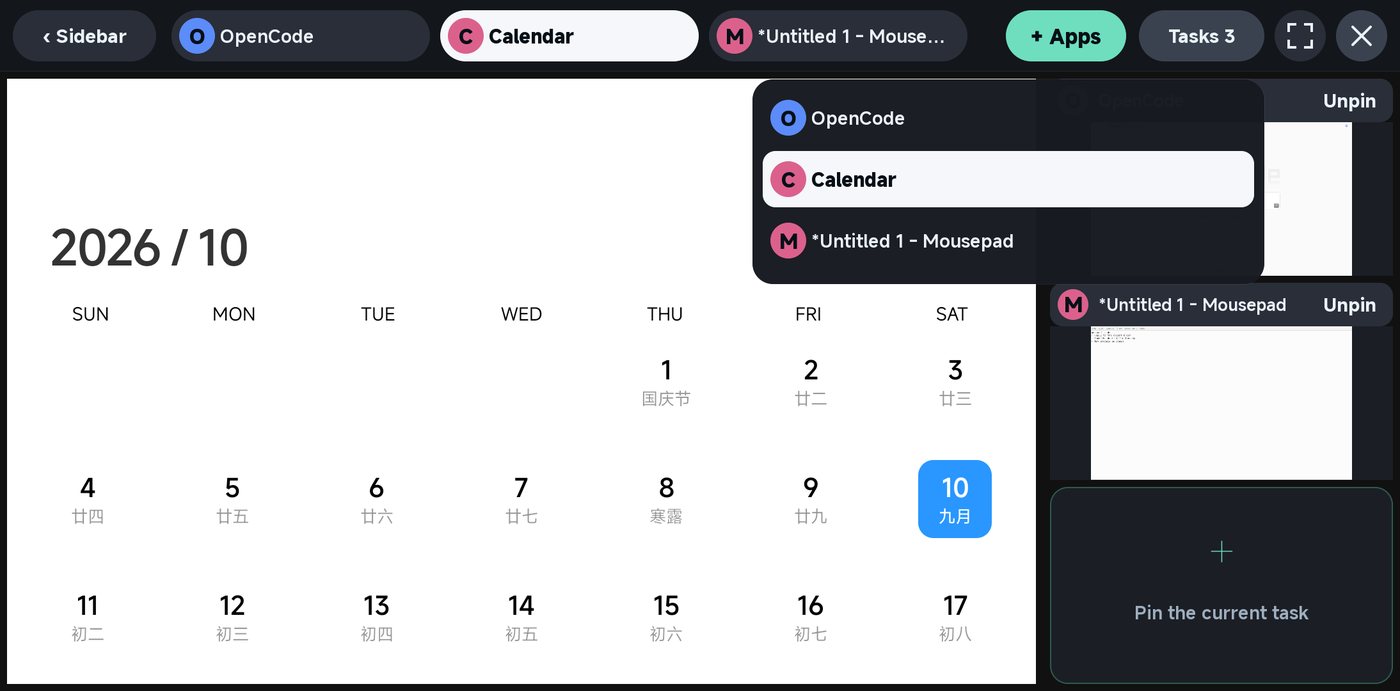
- Tasks: the number of running apps; tap for a full list when the chips don’t fit.
- Full screen: gives the main app the whole screen.
- ×: asks the main app to close, like a window’s close button. Apps can ask you to save first; nothing is force-killed.
- Main area: the app you are working in.
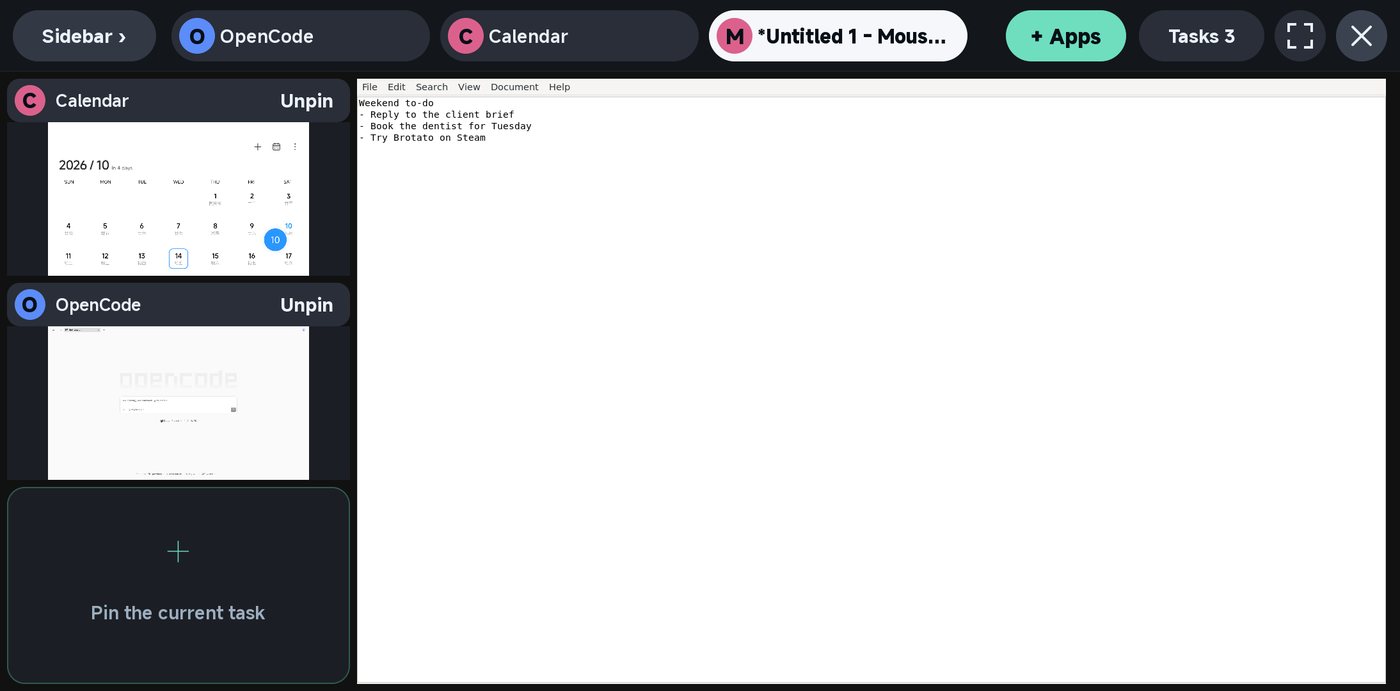
- Pinned slot: a live, scaled-down app. It keeps running and updating.
- Unpin: takes the app out of the slot. It keeps running in the task chips.
- Empty slot: “Pin the current task”. Tap it to pin the main app here.
In Touchscreen mode, tap these controls with your finger. In Touchpad mode, move a pointer onto them and tap the screen.
3 · OPEN APPS
+ Apps: Linux, Windows and Android in one list
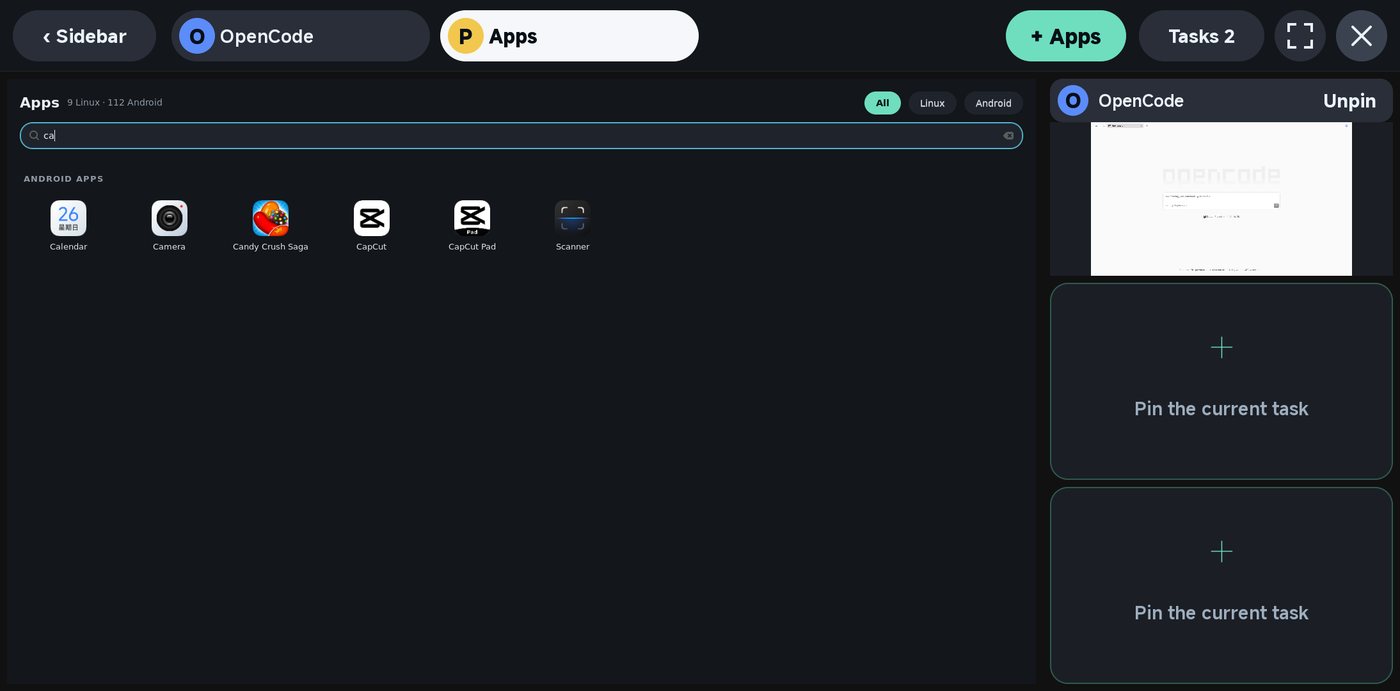 123
123- Search: start typing a name. The keyboard opens from the thin bar on the right edge.
- All · Linux · Windows · Android: filter the list. Settings next to Apps switches touchscreen/touchpad and the Android keyboard.
- Tap an app to open it in the main area. Android apps are the ones installed on your phone; Linux apps come with the workspace or are installed with apt (or by asking OpenCode).
4 · PIN AND SWAP
Keep apps in view, swap them in one tap
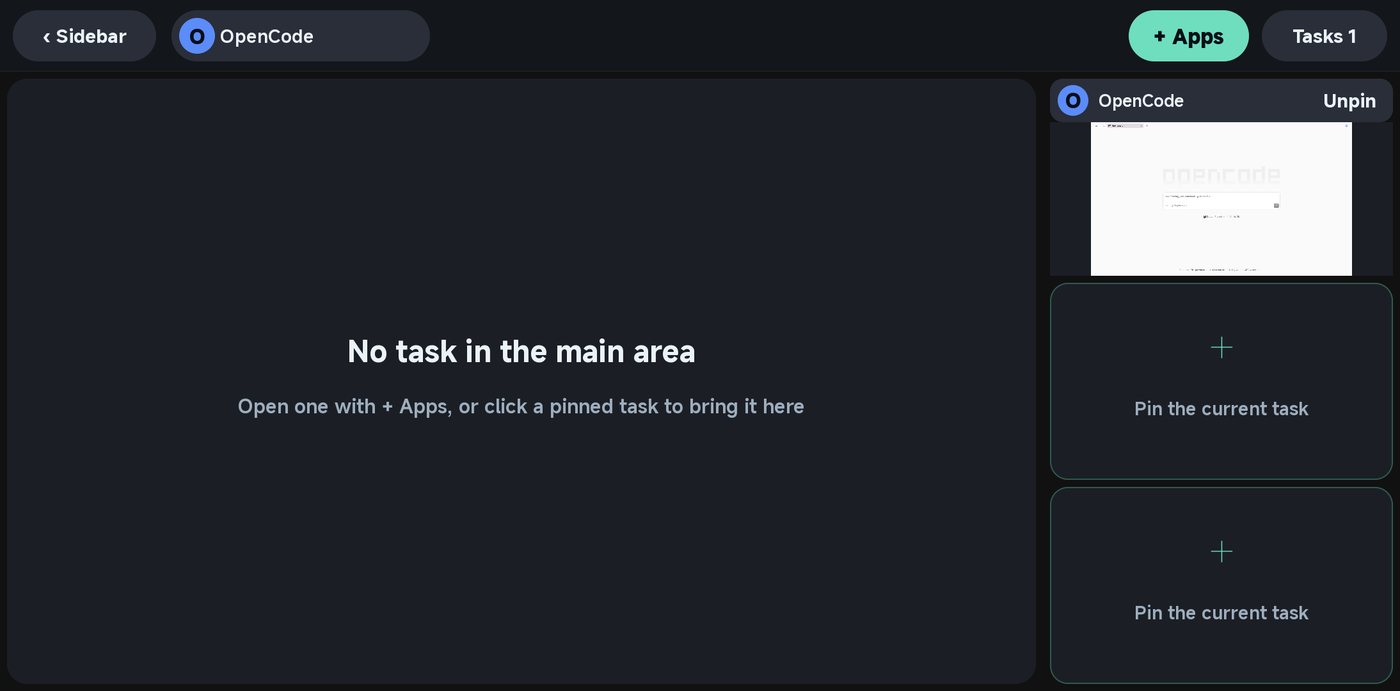
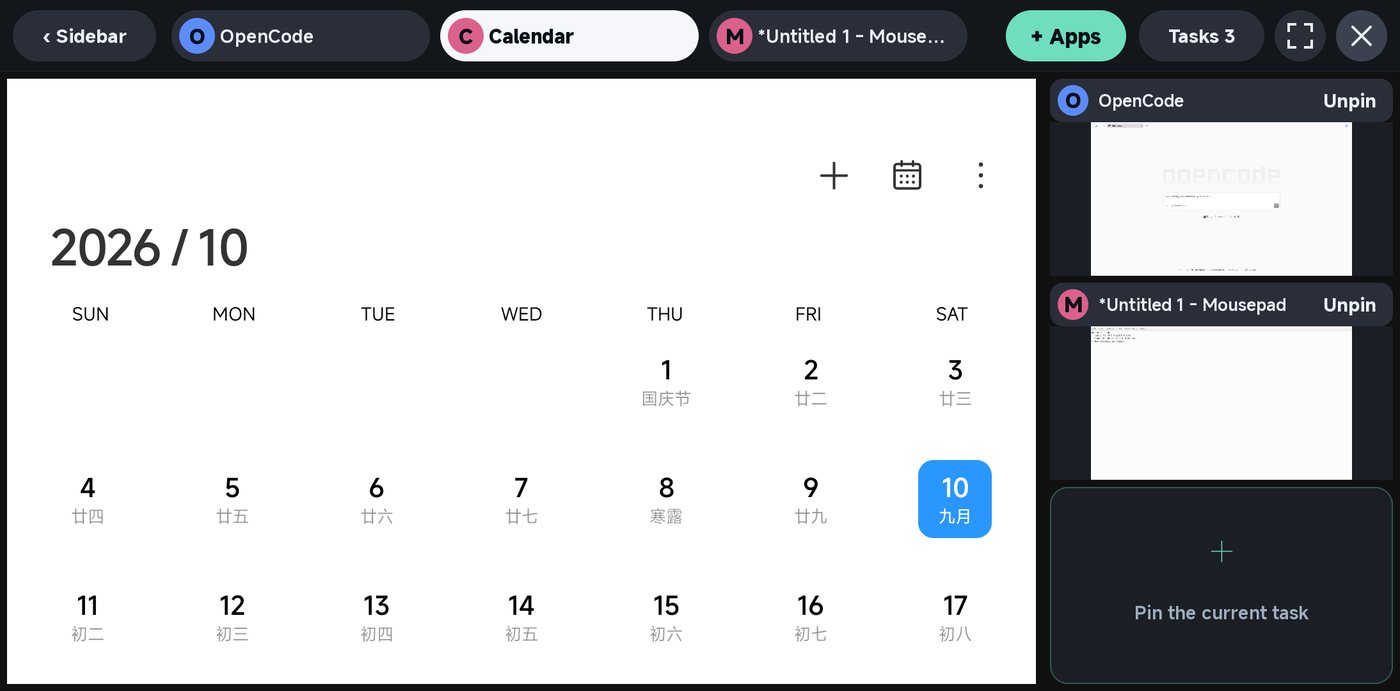
A typical layout: your document in the main area, OpenCode and a reference pinned at the side. Tap the reference when you need it, tap the document to go back.
5 · MORE
Tasks, full screen and the sidebar
 ↩
↩
Leaving the desktop
Press Android’s Back twice within two seconds (“Press Back again to exit ARLinux”). Your apps and files stay in the workspace for next time.
Keyboard and voice
The thin bar on the right edge is outside the desktop. Tap it to show or hide the keyboard. Hold it, speak and release to send your words to OpenCode.